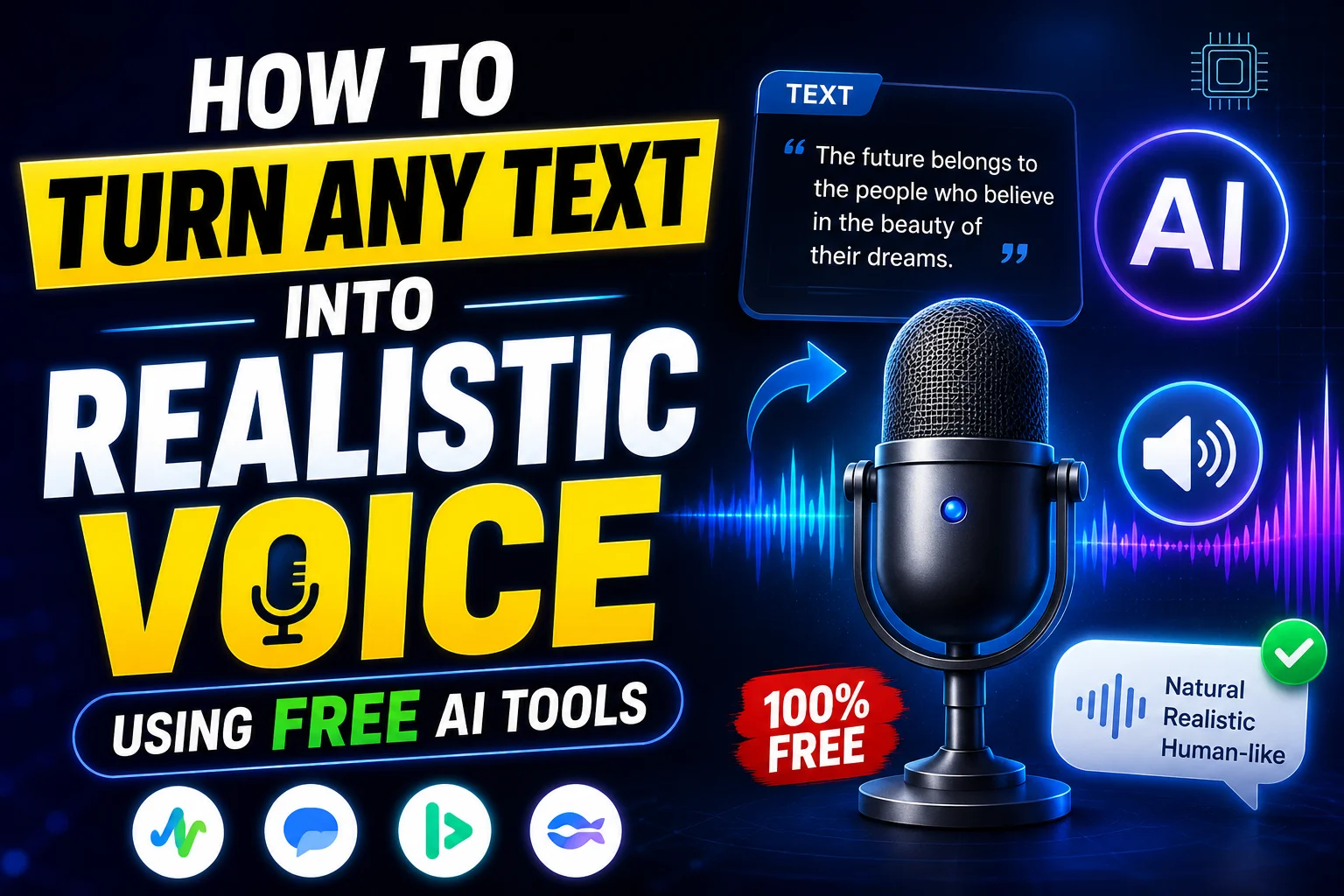
How to Turn Any Text Into Realistic Voice Using Free AI Tools
Welcome back to another day of our free AI course! By now we've covered a good number of AI topics and tools together, and today's lesson is going to be just as exciting. If you haven't watched the earlier lessons yet, I'd really recommend going back and checking them out first — it'll make everything here click a lot faster.
Today we're diving into something genuinely useful: converting plain text into natural-sounding audio. Imagine typing out a story or a script and having it instantly turned into a voiceover — no microphone, no recording booth, no awkward retakes. That's exactly what we're covering today, and we'll even experiment with a bunch of different voices along the way.
Let's get into it.
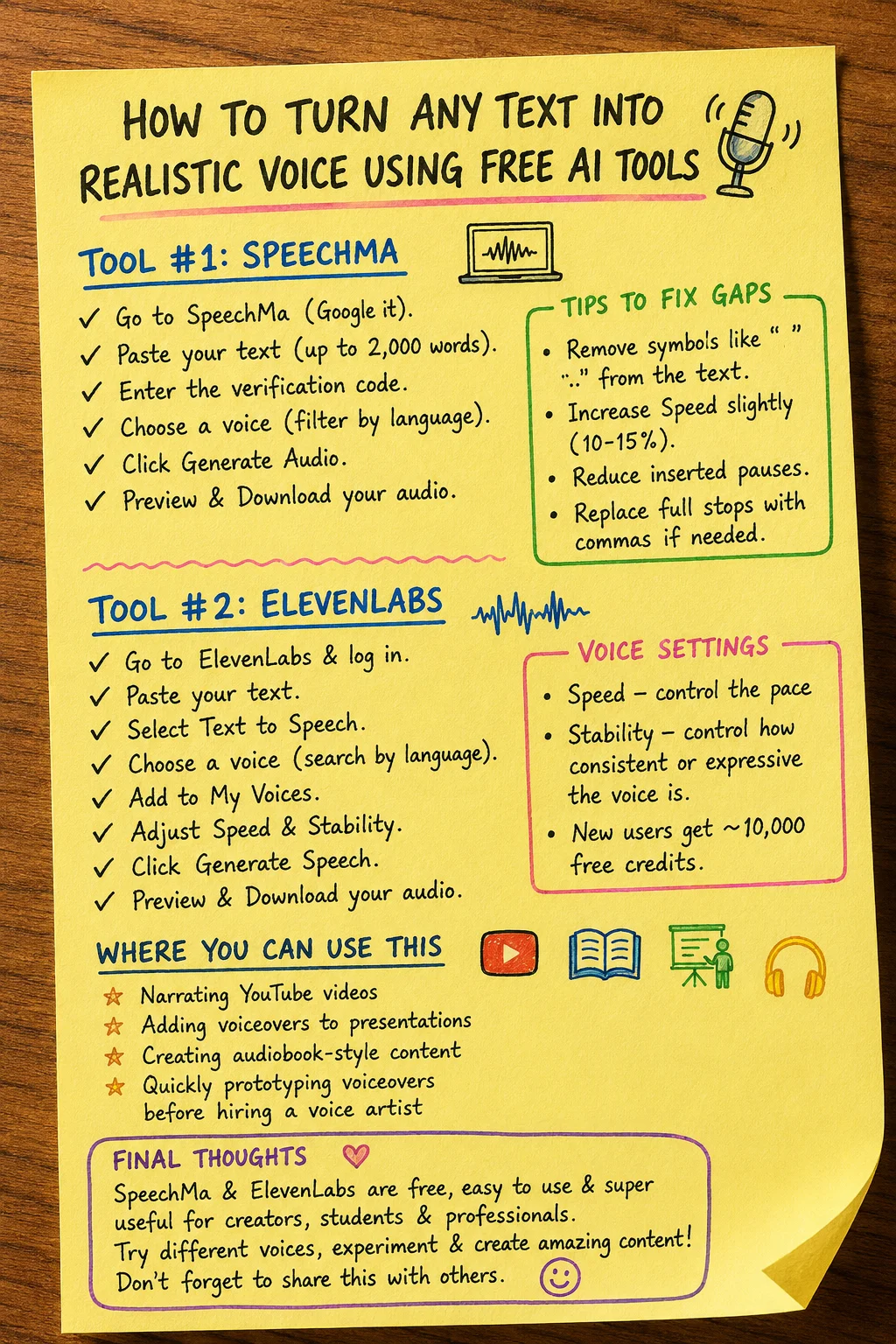
Tool #1: SpeechMa
The first tool we're using is called SpeechMa. Just search for it on Google and open the first link that shows up. The interface is refreshingly simple — you might run into a few ads along the way, but just ignore those and scroll past them.
Once you're in, you'll see a big Input Text box. Anything you type or paste here can be converted into speech. For this demo, I asked ChatGPT to write a short story for me, then copied that text straight into the SpeechMa input box. You get up to 2,000 words per conversion, which is more than enough for most short scripts, presentations, or story narrations.
Picking a Voice
Below the text box, you'll notice a verification code (something like a random 4-digit number). Just type that number into the field provided — it's a simple human-check step.
Scroll down a bit further and you'll land on a huge library of voices — Indian accents, French, Spanish, and plenty more. You can preview any voice by hitting play before committing to it. If you want to narrow things down, head to the Language filter at the top and select the language you need. For example, selecting Hindi instantly filters the list down to Hindi voices only, so you're not scrolling through hundreds of options.
Once you've found a voice you like, select it and click Generate Audio. Processing takes a couple of minutes, and once it's done, you can play back your freshly generated narration right there in the browser.
Fixing Awkward Pauses and Gaps
Here's something worth knowing: your first attempt might come out choppy, with the voice pausing oddly between phrases. That happened in my test too — the narration kept breaking mid-sentence in strange places.
There are two easy fixes:
- Clean up your script first. Leftover formatting like quotation marks (" ") or ellipses (...) from AI-written text (ChatGPT scripts often include these) can confuse the voice engine and cause unnatural gaps. Strip them out before pasting.
- Adjust the Voice Effects settings. Open the Voice Effects panel and bump up the Speed slightly — even a small increase (say, 10-15%) smooths things out. There's also an option to shorten inserted pauses, which helps a lot with reducing awkward silences.
After making these tweaks and regenerating, the difference is noticeable — the voice flows much more naturally, with far fewer robotic gaps.
One more subtle fix: watch out for punctuation like full stops in the middle of a sentence when they're not really needed. Replacing a full stop with a comma, or restructuring a line slightly, can eliminate an unwanted pause entirely. It's a small detail, but it makes the final audio sound a lot more human.
Once you're happy with how it sounds, just hit the Download button, and the audio file saves straight to your device.
Tool #2: ElevenLabs
The second tool — and probably the more popular one you may have already heard of — is ElevenLabs. It's widely used for free AI voice generation and offers a noticeably more polished, professional-sounding output.
After logging in, paste your script into the text box, same as before. The interface can look a little overwhelming at first glance because of the sidebar full of tools — voice changer, sound effects, and more — but don't worry, we're keeping it simple today by sticking to the Text to Speech option at the top.
Choosing and Customizing a Voice
On the right side, you'll find a library of voices you can preview instantly. You can also search by keyword — typing "Hindi," for instance, filters the list to Hindi voices only. Pick one that fits your project and click Add to My Voices.
Below that, you'll find fine-tuning controls:
- Speed — control how fast or slow the narration plays
- Stability — controls how consistent or expressive the voice sounds
Play around with these sliders until the tone feels right for your content. Once you're satisfied, click Generate Speech. New accounts typically get around 10,000 free credits, which is plenty to experiment with before you'd ever need to pay.
The output quality from ElevenLabs tends to be impressively clean and natural — often better suited for professional use like YouTube videos, presentations, or audiobooks.
Once you're happy with the result, hit Download, and the file saves directly to your computer.
Where You Can Use This
This kind of text-to-voice conversion isn't just a fun trick — it has real practical uses:
- Narrating YouTube videos without recording your own voice
- Adding voiceovers to presentations
- Creating audiobook-style content from written stories
- Quickly prototyping voiceovers before hiring a professional voice artist
If you don't want to record your own voice, or simply don't have the setup for it, this is a fantastic workaround.
Final Thoughts
That wraps up today's lesson on converting text into realistic AI-generated speech using SpeechMa and ElevenLabs. Both tools are free to start with, easy to use, and genuinely useful for content creators, students, and anyone building presentations or videos.
Try it out yourself, experiment with different voices, and let me know in the comments how it worked out for you. And if you found this helpful, share it with someone who could use it too — see you in the next lesson!
How to Create AI Marketing Videos for Your Brand
How to Create Free AI Presentations - A Beginner's Course
Google NotebookLM Full Tutorial | Study Smarter with AI | AI Course Day 7