

How to Create Free AI Presentations - A Beginner's Course
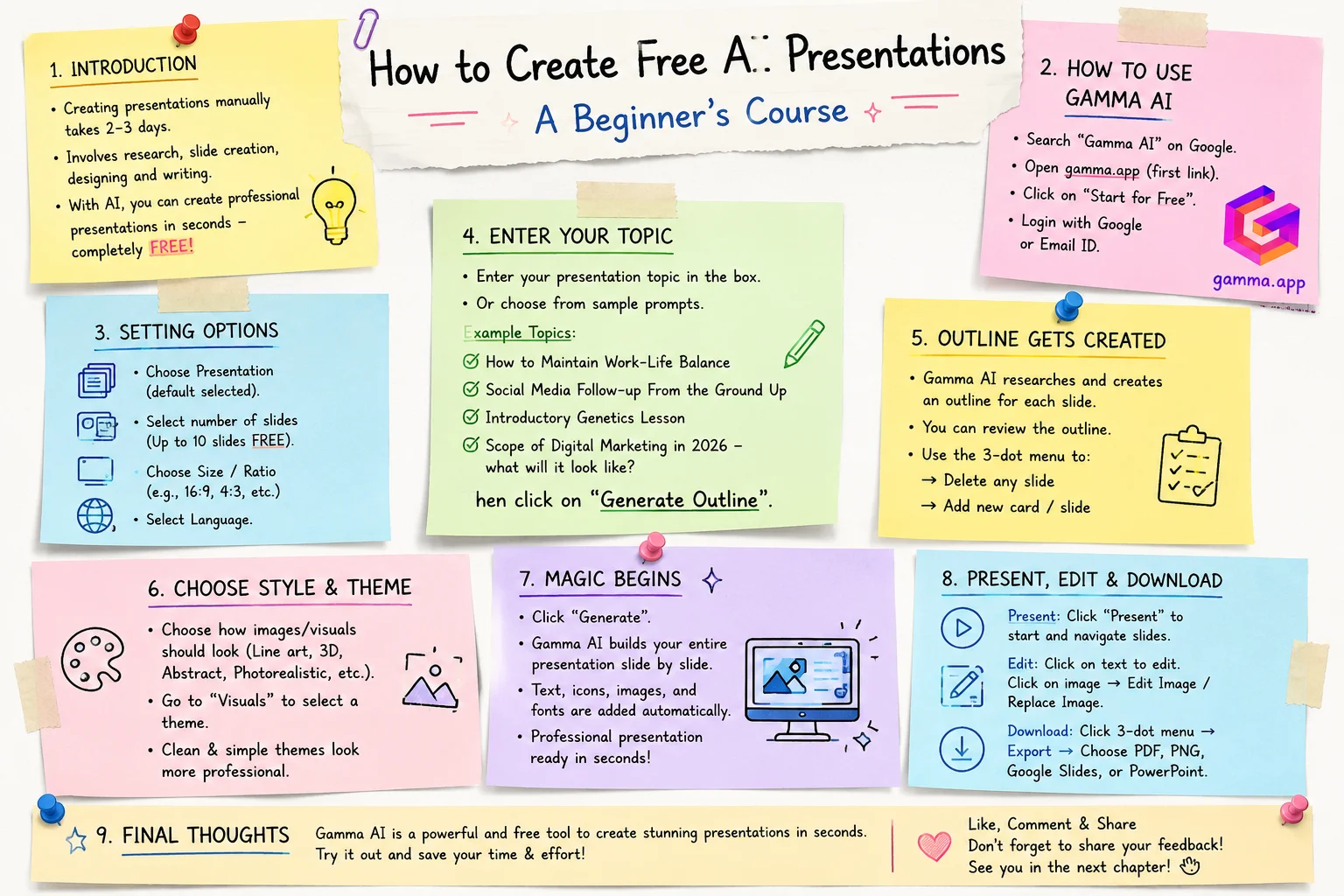
Welcome to today's blog! You've probably faced this many times - having to create presentations. Whether it's for school, college, or work, you might need to make a presentation anywhere.
But making a presentation can sometimes take two or three days, because first you have to research the topic. Then you have to create all the slides. On top of that, there's designing to do, text to write - there's a lot involved.
But now it's the age of AI, so let's get AI to do it for us. And this AI will create presentations for you in just a few seconds, completely free.
How to Use Gamma AI
For this, you need to search "Gamma AI" on Google. The first link that shows up will be gamma.app. Let's open it.
Here you'll see "Start for Free" written. Click on that. You can either log in with Google or with your email ID.
Once you do that, Gamma's interface will open up in front of you. Simply click on Generate here. You'll notice "Presentation" is already selected. We could also make web pages and other things here, but for now we'll stick to making a presentation.
Setting Slides, Size, and Language
So, presentation is selected. Now below that, check how many slides you want in your presentation. Up to 10 slides is free. If you need more than 10, that's a paid feature. But honestly, 10 is more than enough - 10 slides is plenty. For now, let's go with seven slides - seven cards.
After that comes the sizing options - what ratio you want. Then the language option shows up, where you can choose your language. And then there's one simple thing left to do below.
Entering Your Topic
In the box below, we just need to enter the topic we want our presentation to be about. Below that, it also gives you some sample prompts - you can either write in that style or pick one of those topics directly. Like "How to Maintain Work-Life Balance," or "Social Media Follow-up From the Ground Up" - that's one topic, and "Introductory Genetics Lesson" is another.
Since we want to create something around Digital Marketing - which is quite trending right now - let's build a presentation on that. So I'll type "Digital Marketing," or let's tweak it a bit to: "Scope of Digital Marketing in 2026 - what will it look like?"
Once you've typed in your topic, just enter it in the box above and click on Generate Outline below.
The Outline Gets Created
So first, what does it do? It goes and researches different topics for each slide on its own - right now it's actively doing that research. And look, it's created the outline. Now it'll build slides based on each of these points.
We got sections like Marketers, AI Video Ads, Smart Use of Data, Global Digital Trends, and a Conclusion.
If you don't want any of these slides, or you want to make changes, click on the three-dot menu on the side. From there you can delete a slide, or click "Add Card" to add a new one.
Choosing Photo Style and Theme
Now, how do you want photos used within the slides? There are different styles below - line art, abstract, 3D, or photorealistic, whatever you prefer. You can even choose the overall theme.
There's a "Visuals" option here. If you go into that, you'll find different theme options - what style you want your presentation in. Personally, I think a clean look works best. The first, more colorful option looked a bit odd to me. The simpler you keep it, the more professional it looks.
Once you're done with all this, just click Generate at the bottom.
And Now the Magic Begins
Now watch closely - the magic is about to start. Our entire presentation is being built live in front of you. It's being typed out word by word, one word at a time. If you were doing this yourself, just imagine how much time it would take.
And now you can see logos appearing, icons showing up - everything is happening on its own. I don't even have to lift a finger! Look at this, and over here too - the presentation is coming together beautifully. It's turning out to be really professional. Look at this - "Scope of Digital Marketing in 2026." Here are all our slides, and it's even used proper fonts throughout.
Presenting and Editing Your Slides
At the top, there's a "Present" button. Just click on that, and from here you can actually present your presentation. You can switch between different slides as well.
If you need to make any text changes - say you want to edit something here, like this word "Audiences" - just click on it, move your cursor to where you want to make the change, and type whatever you want.
Want to change an image? Click on the image, and you'll see an "Edit" button appear below - click on "Edit Image" and add whichever image you like. There's also a "Replace Image" option available.
How to Download Your Presentation
If you want to download this presentation onto your PC, that's easy too. Just click on the three-dot menu here. You'll find an "Export" option - click on Export, and select "Export to PDF."
There are other options too - you can export it as PNG, to Google Slides, or even to PowerPoint.
Final Thoughts
This tool is genuinely very useful. If you're planning to create your presentations this way, definitely remember this one and give it a try.
Today you learned about Gamma AI, and I'd love to know how you found today's lesson - let me know in the comments. Your likes, shares, and comments really help us out a lot. So don't forget to like, comment, and share this blog.
See you again tomorrow for the next chapter!
Google NotebookLM Full Tutorial | Study Smarter with AI | AI Course Day 7