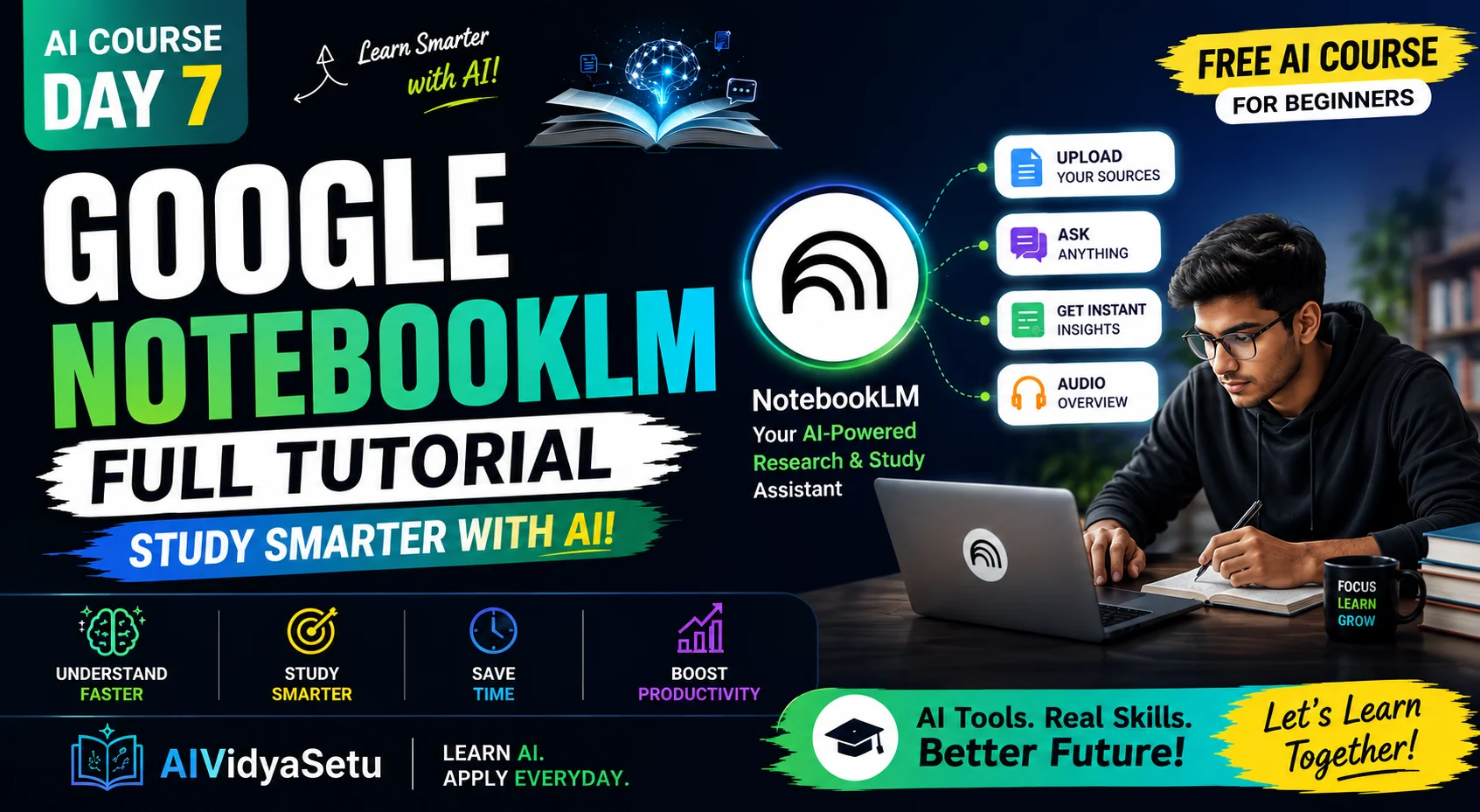
An article called “How People Really Use AI” was open in front of me, and even though it was well written, I could not read it line by line. Along with it, a full Class 10 Science chapter PDF and the NCERT “Chemical Reactions and Equations” PDF were also lying there. Reading so much at once felt heavy, so I tried Google NotebookLM. This post has all of that: how I added the article, how I added the PDF, and what came out after that.
What NotebookLM is and why it is useful
NotebookLM is Google’s AI tool that reads the article, link or PDF you give it, makes a summary of it, and answers your questions about it. On its website the tagline “Understand Anything” is visible, meaning help in understanding anything.
In ChatGPT or Gemini, you ask a question directly and they build the answer from the information they have learned. In NotebookLM, you first add your own reading material, like an article or PDF, and then talk about that same material. We have already explained what an LLM is in the earlier posts, so here we go straight to using it.
This tool is useful for people who have to read a lot. A student has to understand a chapter, and someone else has to pull the meaning out of a long article or report quickly. For me, the most useful thing was that I got a way to break a long piece into small parts and understand it.
What you need before starting
I did not see any need for coding or money. You need a Google account, a browser, and the link of the article or the PDF file you want to understand. It can open on both phone and computer, but I ran it only on a computer.
For the first task, pick real material that you actually want to read. I took one article and one chapter PDF, because the method for the two is a little different. What is free and what the limits are did not come up in my test, so check that in your account or on the official page.
First task: adding an article link
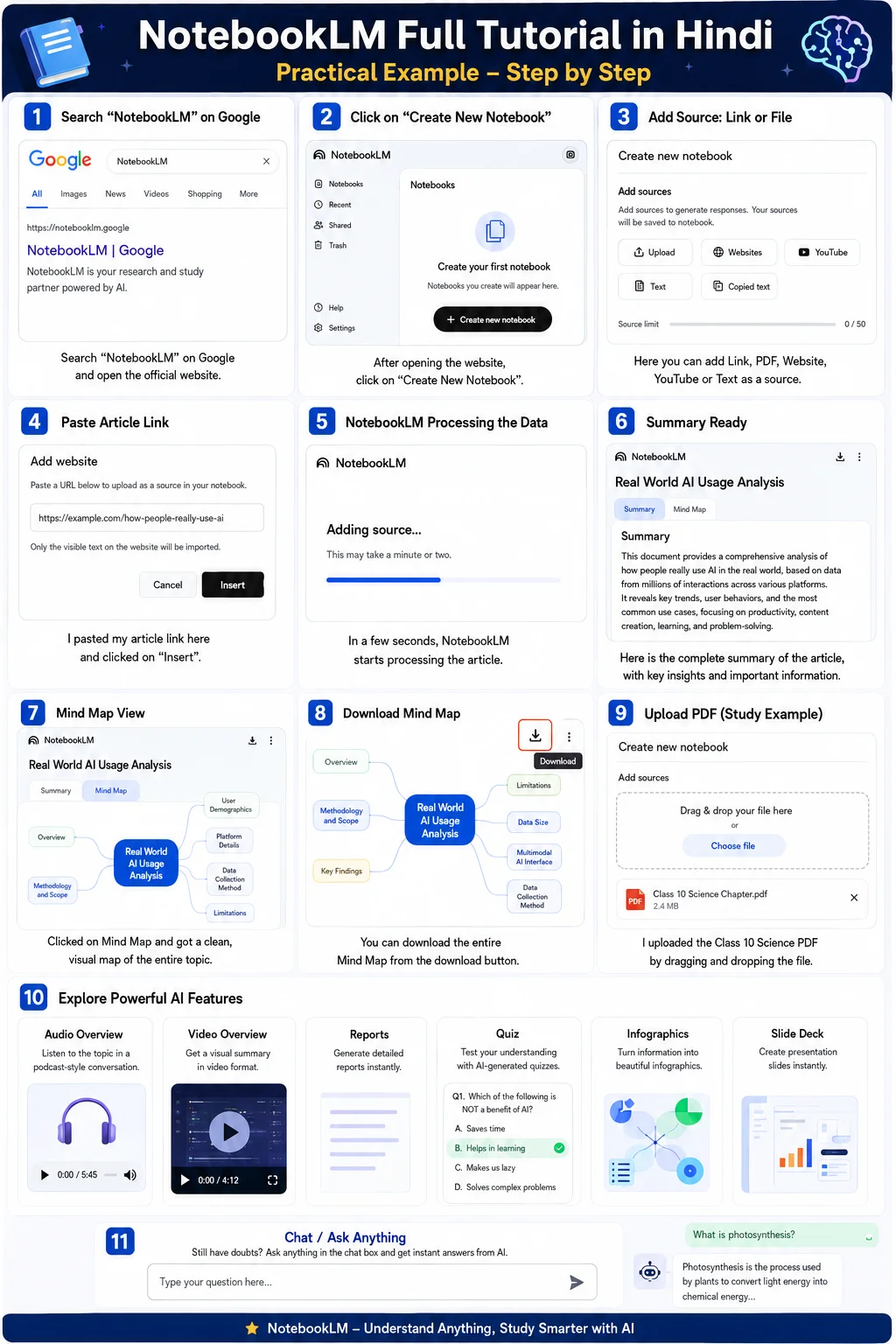
First I searched “NotebookLM” on Google and opened the first result. These were my steps:
- Open the NotebookLM website. A simple interface will appear.
- Click “Create New Notebook.” Here you can drop a file or paste a link.
- I copied the link of my article and chose the “Websites” option.
- I pasted the link and pressed “Insert.”
- Processing started on its own.
Within a few seconds the full summary was in front of me. It said what the article is about, who wrote it, and what the main points are. Different options were also visible on the side.
In this part, one of my weaknesses showed clearly. Reading a long article line by line has always been hard for me, and it took me a long time to read it directly. The summary gave me the first outline, and from there I could read further.
Mind Map: the whole structure on one page
Among the options on the side, I tried “Mind Map.” A clean mind map opened, which you can drag around with the mouse. It made understanding the structure of the article quite easy.
At the very top “Real World AI Usage Analysis” was written. Below it was first an overview of all the data, and then its branches, like “Methodology and Scope.” When I went further inside it, I found four small points, like Platform Details and Data Size. When I opened Platform Details, I found out it was talking about the “Multimodal AI Interface.”
In this way you can go all the way down into any topic and pull out its details. Another convenience is that the whole mind map can also be downloaded. Its button was visible right at the top.
In my view, a mind map is best for people who want to see how a thing is built before reading it. But it is like a summary, meaning the full meaning of the article does not come into it. Reading the important parts in the original article is still necessary.
Second task: the Class 10 PDF
Now I took the second example. That Class 10 Science PDF, and the NCERT “Chemical Reactions and Equations” PDF. I pressed “Create New Notebook” and directly dragged and dropped the file. The full summary of the chapter was made right away.
Here I found one more thing: “Audio Overview.” As soon as I clicked, an audio like a podcast was made, with two people talking to each other, and the topic was the same one that was in my PDF. When you listen to two people talking, it does not feel like reading, it feels like listening to a story. The topic sits in your mind through the conversation.
This turned out to be the most useful thing for me, because what did not stick from reading was understood from listening. Just remember that the audio is a summary of the PDF, not the whole chapter. For exam preparation, reading the chapter yourself is necessary.
Changing language and format
Audio Overview is not made only in English. On my screen, options like Hindi, Punjabi and Gujarati were visible. This helps students who want to understand in their own language. Which language is available right now keeps changing, so check once in your account.
You can change the format too. Clicking the pen or edit icon at the top brings up options like debate style, critique style, short or long. In debate style, two people talk about both sides of a topic, and in critique style the strengths and weaknesses of the thing are told. My suggestion is to listen to the same chapter in two different styles, and the difference is understood right away.
Quiz, Video Overview and other options
Besides the summary and audio, NotebookLM showed more options: Video Overview, Reports, Quiz, Infographics and Slide Deck. I did not run all of them in depth, so of these I only liked the quiz.
Solving a quiz yourself makes the topic firmer. Right after reading, you get a check of what you understood and what you did not. If you have any doubt, you can type your question in the text box below and ask the AI directly.
The other options, like Video Overview or Slide Deck, you can try one by one according to your need. About them I cannot say anything certain, because I did not test them fully.
Common mistakes and their solutions
First mistake: reading only the summary and leaving it there. Solution: understand the structure from the summary, then read the important parts of the original article or chapter yourself.
Second mistake: putting in any file without looking. Solution: before uploading, check that the file has no personal or confidential information.
Third mistake: stopping at one output. Solution: the summary, mind map, audio and quiz each help in understanding in a different way, so do not get stuck on one.
Fourth mistake: not asking when you have a doubt. Solution: write the question in the text box and see what answer it gives. If it still feels wrong, match it against the original material.
Limitations, privacy and safety
NotebookLM is also AI, so it can sometimes misunderstand something or get it incomplete. An important point can be missing from a summary, or the meaning of something can change a little. Always match important facts about money, health, law or exams against the original source.
Think about one thing before uploading. The file you put in goes to that tool. Every tool has a different privacy policy, and how long data is kept can also differ. Do not put in a confidential office report, personal information like bank details or Aadhaar, or someone else’s private file without permission.
One more thing to watch. Putting a book or PDF in and listening to its summary is fine for your own learning. But publishing or selling that summary as your own is not right.
My experience
For me, the biggest benefit of this tool was that a long article or a whole chapter did not feel heavy on my mind all at once. I tested two things: one article link and one chapter PDF. In both, the summary came right away, and the options after that were useful in different ways.
My weakness is that I have trouble reading long articles line by line. Earlier I used to leave such articles without reading them, and the thing never sat in my mind. After NotebookLM this problem got smaller, but the habit of reading the original material I will still have to build myself.
In my view, the audio part was the most useful for me, and the mind map came second. This is my own experience, and it need not be the same for everyone.
Who this is for and who it is not for
This post is for students who take a long time to understand a long chapter or an NCERT PDF, because the summary and audio make the start easy. It is also for people who read articles or reports every day but have little time, because the mind map shows the structure first. And for people who learn more by listening than by reading, because Audio Overview works for exactly them.
This post is not for people who need the exactly correct, word-by-word meaning of a book or research paper, because small differences can come into an AI summary. It is also not for people looking for certain information on plans or limits, because that keeps changing and has not been given here.
Disclaimer
This post is only for a beginner-level understanding. The tool’s features, language and free limits keep changing, so check the official page before making a decision. Do not rely on AI’s answer alone.
Day 6 of Free AI Course for Beginners: Google Gemini
ChatGPT Full Tutorial - Master It in Just 10 Minutes!
What Is Prompt Engineering? How to Actually Talk to AI (Free AI Course – Day 4)