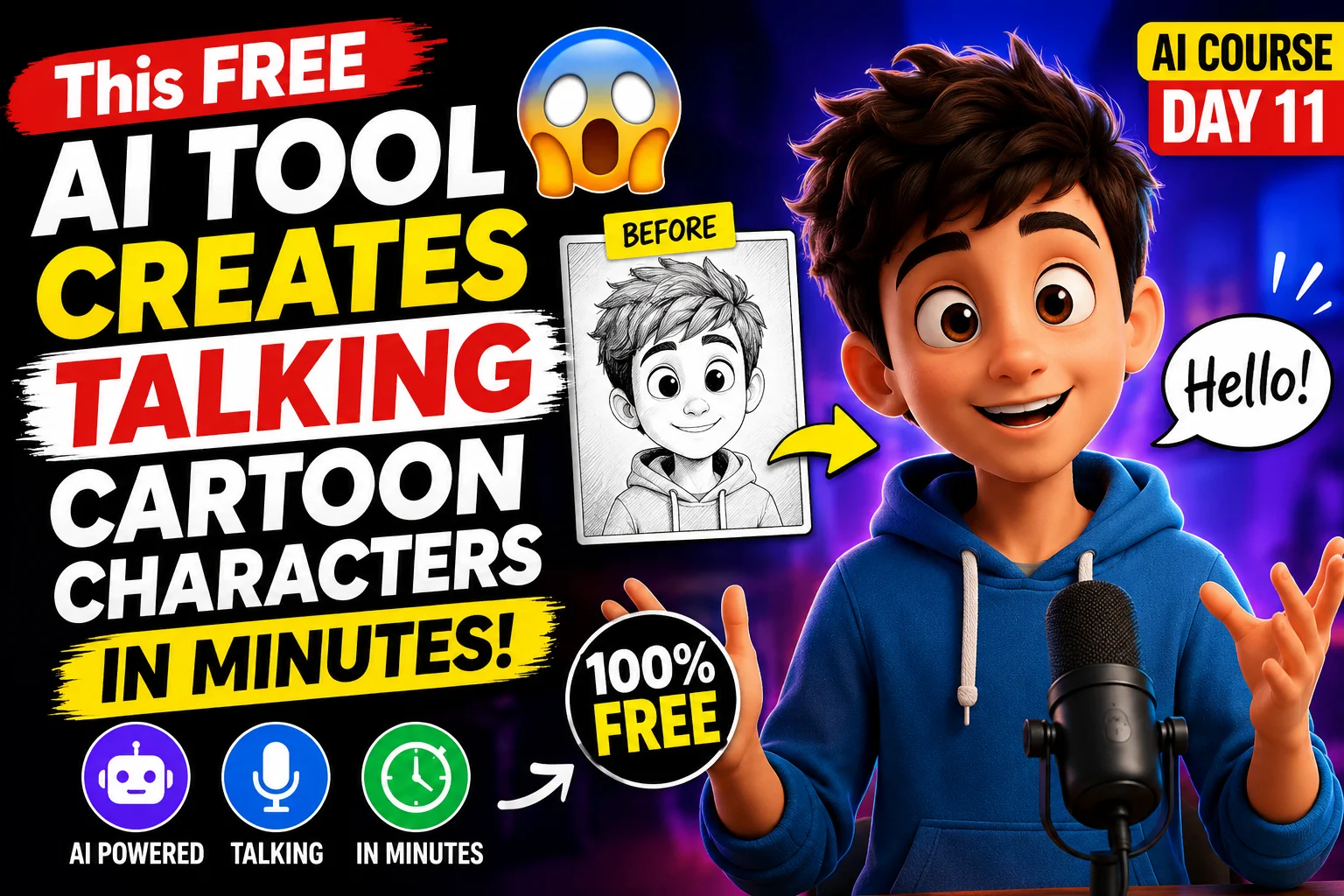
How to Make Animated Cartoon Characters for Free Using AI (Day 11 of the AI Course)
If you've been following along with this free AI course for beginners, you already know the basics of working with AI tools. Today's lesson is one of the more fun ones — we're going to make animated characters and cartoons talk, move their hands, and deliver dialogue, all without touching a camera or hiring a voice actor.
And yes, the tool we're using is completely free, so you can practice along as you read this.
Step 1: Find the Tool
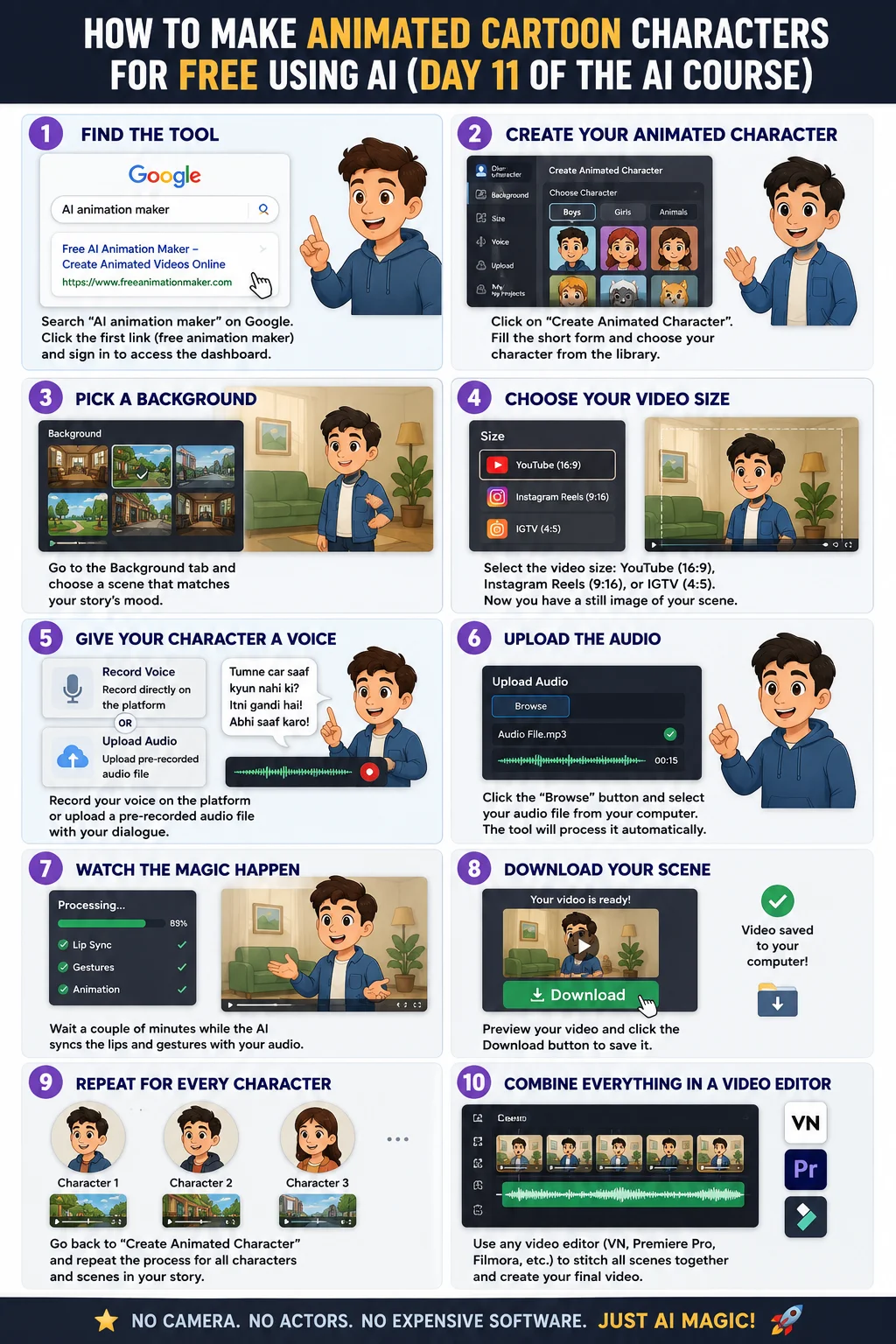
Open Google and search for "AI animation maker." You'll see a few results, but the one you want is the first link — a free animation maker that lets you generate animated videos online. Click on that, and you'll need to sign in before you get access to the dashboard.
Once you're signed in, you'll land on the main interface where the actual work happens.
Step 2: Create Your Animated Character
Look for the option that says "Create Animated Character" and click it. From here, the tool will ask you a short form — mostly basic questions like how you heard about the platform. Nothing complicated, just fill it in and move on.
After that, the real interface opens up, and this is where the magic starts. You'll see a whole library of cartoon characters to pick from — boys, girls, and even animals. The idea is simple: pick whichever character fits the story you want to tell.
Step 3: Pick a Background
Right next to the character options, you'll find a Background tab. Click on it, and you'll get a range of scenes to choose from — different settings, different vibes. Just pick whatever matches the mood of your story. Once you've selected one, your character now has a proper scene to "live" in.
Step 4: Choose Your Video Size
Next comes the Size option. This is where you decide the format of your final video — a vertical size for Instagram Reels, the standard YouTube format, or the IGTV format. Pick whichever matches where you're planning to post the video. For a regular video, the YouTube format works fine.
At this stage, you'll technically have a still image of your character — no sound, no movement yet.
Step 5: Give Your Character a Voice
This is the part that actually brings the cartoon to life. You've got two options here:
- Record your voice directly on the platform using the built-in recorder.
- Upload a pre-recorded voice file from your phone or computer.
If you're recording separately (say, on your phone, because you don't want background noise or you're using a different mic setup), that works too. Just record a short dialogue — it doesn't need to be long. Something simple works well, like a small scene: a scolding dialogue about a dirty car that wasn't cleaned properly.
Once you've recorded it on your phone, transfer the audio file to your computer.
Step 6: Upload the Audio
Back on the platform, click the Browse button (it's a small link, easy to miss) and select the audio file you just recorded. That's it — you don't need to do anything else manually from here.
The tool takes over completely. It starts processing the video automatically, syncing the character's lip movements and gestures to match your audio. This usually takes just a couple of minutes.
Step 7: Watch the Magic Happen
Once processing is done, hit play. You'll see your character actually moving — hands gesturing, mouth syncing to the words, full body language reacting to the tone of the dialogue. It genuinely looks like the character is having a real conversation.
Step 8: Download Your Scene
Click the Download button, and the video scene saves straight to your computer.
Step 9: Repeat for Every Character in Your Story
If your story has multiple characters, go back to "Create Animated Character" and repeat the whole process for the next one — new character, new background, new voice recording. Do this for every scene in your story until you've got all the individual clips downloaded.
Step 10: Combine Everything in a Video Editor
Once you have all your scenes ready, open any video editing app or software and stitch them together into one final video.
Don't know how to edit video? No stress — there are already full courses on this same channel covering editing basics from scratch. If you're editing on your phone, there's a VN app tutorial. If you're working on a PC, there are courses on both Premiere Pro and Wondershare Filmora. Everything's covered, starting from the absolute basics, so you can pick whichever tool suits your workflow.
That's really all there is to it. In under half an hour, you can go from a blank screen to a fully animated character delivering dialogue with expressions and gestures — no animation skills, no expensive software, no editing experience required going in.
Give it a try, make your own short scene, and see how it turns out. And if you're following this course lesson by lesson, the next one builds on skills like this, so stick around.
Top 7 Independence Day AI Photo Prompts 2026 (15 August) — I Tried Them All on My Own Photo